Showing posts with label how to speed up android phone. Show all posts

4/15/2015

Samsung Galaxy S5 problems and solutions: 10 common issues and how to fix them

As experience has shown on more than one occasion, it is quite common to see a new smartphone attract a few teething problems. If we're lucky, the problem is widespread and the solution becomes quickly known or the manufacturer gets right on it and fixes it pronto. But this doesn’t always happen and some problems only appear after a while. Here are the ten most common Samsung Galaxy S5 problems and how to fix them.


The Galaxy S5 is not without its problems. Here are the solutions


1. Camera crashes

The Samsung Galaxy S5 has one of the fastest cameras on any smartphone, both in terms of focusing time as well as shooting. Unfortunately, this quick draw speed sometimes causes issues whereby the camera app actually crashes instead of capturing that magic moment. This problem may simply be because the image stabilizer option is enabled. This option helps you get more luminous, clear pictures in low light without using the flash, but of course it also involves additional image processing that not only makes taking pictures slower, but also occasionally leads to the camera app crashing. To check if you have this option enabled or not by going to the camera settings > Image Stabilizer.

Another problem with the camera closing unexpectedly is followed by the following message: "Camera failed" or "the camera application is not responding". This error is a more serious hardware issue and was present on multiple devices, so Samsung responded and advised that users who have this problem should contact the store they purchased their S5. If the fault is found to be the hardware issue, Samsung can ship a replacement S5.

2. Water damage

The Samsung Galaxy S5 is water-resistant and this water-resistancy is listed in the specifications. However, there have been more than a few people that have confused water-resistancy with water-proofness and joyfully given their Galaxy S5 a bath. And then been less joyful when they have water damage issues. Do not forget that the back cover of the S5 is removable and, therefore, it is not waterproof like the Xperia Z3.


The Galaxy S5 is water-resistant, but that doesn't mean you should try getting it wet


Suffice to say, it is not advisable to submerge your Galaxy S5, for fun or necessity. The IP rating is generally accepted as being sufficient to with stand a rain shower or the like, but not prolonged submersion. If you really must immerse your S5, make sure the back panel is tightly closed and all ports are closed. In the event that your S5 stops working after getting wet, do not try to turn it on. Pull it apart and dry the components, then insert them in a bag of rice for a day or two before reassembling and trying to turn it back on.

3. Too much lag?

It is well known to all that thanks to TouchWiz and bloatware, Samsung devices tend to suffer the most from lag of any smartphone. In case you don’t know what I mean, the word “lag” refers to the delay or stutter when we swipe through screens or pages, or the delay when launching apps or switching between tasks.

To treat S5 lag, I recommend you disable some animations and the home key shortcut to S Voice. For the first, long press on a blank space on a home screen and tap Home Screen Settings. Then change the transition effect to nothing. You can also remove My Magazine if you’re not a fan (it is possibly the laggiest part of the S5). To disable the S Voice shortcut, we just have to open S Voice, then go to Menu > Settings > Open via home key and uncheck the option. Here's some more tips to speed up the Galaxy S5.

4. Overheating

If you experience excessive heating of your S5 and, above all, in the vicinity of the battery, a simple sidestep is to go to Settings and lower the screen brightness, as it is the biggest battery drain. It is also highly advisable to lower the screen timeout to 15 seconds. Once you do wait a bit to see if the temperature drops.

If you still experience an overheating problem you think is problematic, then you may have a physical problem with the battery itself. Take a look to ensure it is not swelling or leaking and if you can’t see anything out of order, take it to a technician for a proper inspection. Of course, prolonged screen on time is always going to lead to heating up, as are graphics-intensive games and tasks.

5. Display problems: auto-brightness, ghosting

If you have experienced problems with auto-brightness levels – either the screen is too bright or too dark for the ambient light conditions – then you may have a dirty or faulty sensor. Take a look and make sure there’s nothing gunking up the sensor on the front of your S5 and if you can see something under the glass you may need a repairman to assist.

On the other hand, many users also suffer from the so-called ghosting that causes some pictures to stay on the screen as a faint background. This is occasionally solved with a software update or some attention to on-screen elements that are the cause of the ghosting: there are apps available that supposedly repair screen burn-in. Another trick is to keep your screen brightness at a low manual setting to minimize the severity.

6. Touch response issues

Currently, the management of our smartphone is really intuitive and the least we expect is that when you touch the screen it reacts instantly. This may not be the case in your Samsung Galaxy S5. Many users have reported problems with a lack of calibration on the touch sensor. This means the smartphone does not respond exactly where the screen is touched, but few millimeters to either side.


The service menu on the Galaxy S5 lets you test features like touch responsiveness.


As usual, the solution to this problem lies in an update. If you have the latest update already and the screen sensor still does not work well, then you can try a factory data reset (make sure you backup fully first!). If the problem still persists, I recommend going to the secret Galaxy S5 service menu for helping us test phone problems like sensors and touch response. To enter this menu, go to the dialer and enter *#0*#. There we can see in "Touch" if it reacts well to touch and see if there are problems. If so you'd better take your S5 to a technician for further examination.

7. Sensor problems

Now let's talk about other sensors. Let's start with the fingerprint sensor. From my personal experience I can say that it does not always work as it should, although it has improved. (The Galaxy Note 4 has significantly improved the responsiveness). Unfortunately there is no definitive solution to this problem on the S5. Other than recording your fingerprint with a natural gesture (based on how you generally hold the phone) or paying extra attention to how you swipe your digit, you’ll just have to get used to this one, or hope that Samsung tries to make further software improvements.


You can check issues with a bunch of other sensors on the S5 too


If you’re having problems with other sensors, say with the display or gesture controls, or even haptic feedback or tones, you can take a further look through the service menu mentioned above. Just open the dialer and enter *#0*# and select the "Sensor" option. You might also want to try out the following app, Phone Tester:

8. Knox problems

Not everyone realizes the S5 includes a special security system called Knox, the biggest surprise being that when making any changes to the software, either via root or by changing the ROM, the S5’s flash counter is increased and is not so easy to reset, meaning a one-way trip to voided warranty land. Another problem that arises from an overactive Knox is that we will also lose automatic official updates and OTA notifications will disappear.

Fortunately, you can disable Knox. We’ve already done a whole article about what Knox is and how to disable Knox on the Galaxy S4, but the same steps are also used for the S5.

9. Wi-Fi problems

The Samsung Galaxy S5 has an option that makes Wi-Fi shut off automatically if the connection is very bad. If your Wi-Fi connection is suddenly lost, that may be the reason. However, Wi-Fi dropout can also happen when you open the Google Play Store or some other application, so you should first check to see if you have the option enabled before we look to other culprits.

It's called Smart Exchange network and what it does is change to your data network when the Wi-Fi signal is very weak. Just head to Settings and your Wi-Fi menu to disable the option and see if the problem persists. If it does, try clearing the cache of the app that causes the disconnection.

10. Sudden death

This problem is the last on the list and may well seem to be the end of your smartphone. Sudden death bug was a particular problem for the Galaxy S3 and unfortunately, the problem has also affected other devices in the Galaxy range. If your S5 starts turning itself off without warning or acting particularly erratically or won’t even turn on (assuming you have a charged battery), the only option left to you is a hard reset. This will erase your data, so make sure a regular backup is part of your S5 care plan.

If a reset does not bear fruit, the only avenue left to you is to take it to a Samsung technician. If the problem lies with an internal component or the motherboard itself, they are the best ones to tackle the issue (and keep your warranty intact).

I hope you have found the solution to your particular S5 problem. If not, feel free to visit our Galaxy S5 forum to ask any other questions you may have or to provide solutions you may have found to some other S5 problems.


--------------------------------------------------------------------------------------------------------------------------------------------------------------

More related articles:


How to Speed Up, Clean Up, and Revive Your Android Phone


We're all decluttering our closets and basements in celebration of spring, but it's time for a break. Kick back on the couch, pull up your Android phone, and act like you're still being productive by giving it some spring cleaning of its own.

Reclaim Drive and SD Card Space

Most Android devices have two different storage spaces: your internal space (where apps are stored) and your SD card (where your music, photos, and many of your apps' settings are stored). The SD card is easy to clean up—just delete any music, photos, and videos you don't need. If you see any folders that look like settings for apps you've removed, you can delete those too. If you're rooted (which is really easy to do), you can even use an app like previously mentionedSD Maid or the root-free Clean Master to clean up all that cruft for you.


Cleaning up your internal storage is also pretty simple: just uninstall unnecessary apps. Chances are you have a few apps you don't use anymore, not to mention games you don't play—they'll take up the most space—and you can just uninstall them from the Play Store to free up that space and, hopefully, speed up your phone a little bit. If your phone is starved for internal storage and you can't spare any of your hard-earned apps, you can try moving them to your SD card instead (at least, if you're running Android 2.3 or earlier). This will free up that internal space and speed up your phone, but keep all your apps close at hand. To do this, just head to Settings > Applications > Manage Applications. Select an app, and tap the "Move to SD Card" button to move it. Some apps won't have this ability, but you should find that lots of your space-hogging apps have no problem living on your SD card. You can read more about this process here.

Of course, if you don't have an SD card in your phone, you'll just have to delete files and uninstall apps if you're running out of space.

Give It a Battery Boost

Lots of Android phones are notorious for sucking battery life quickly. If you haven't dug through your settings in awhile, this is a good time to make sure you're getting the most out of your battery as possible. This means turning the brightness down, the Wi-Fi and Bluetooth off when not in use, and turning off any eye candy (not to mention uninstalling apps that constantly use up your data). Tweak these settings yourself or automate them with a program like Tasker or JuiceDefender for an easy, hassle-free battery life boost. I'm always an advocate of getting a second battery, too—just keep it in your glove box or in your desk drawer for those emergencies where your phone is about to die.


Speed It Up with Some Settings Tweaks


If your phone is a bit older, or it's just feeling sluggish, there are a number of things you can do to make it feel a little smoother. Trying a new home screen launcher is always good for a bit of speed, as is lowering your number of home screens and ditching all those widgets. If you'rerooted, you can even overclock or install a custom ROM for even more speed. And, if you really want to get technical, there are some advanced settings you can play with to eke every bit of speed out of your phone possible. For more info on how to speed up your phone, check out our in-depth guide. Just don't use a Task Killer, whatever you do (unless you're on a really, really old version of Android—like, 1.6 old).


Remove and Clean Your Case (If You Use One)

Of course, the inside of your phone isn't the only thing that needs cleaning. If your phone has gotten a bit dirty over the past year—which is even more likely if you have a dirt-trapping case on it—you might want to take it off and clean it up. The case shouldn't be too hard to clean, but make sure you don't clean your phone with anything that'll harm the screen. We've gone through how to safely clean and disinfect your gadgets before, so check out that guide for more info.

Unfortunately, Android devices are finicky, and can take a lot of maintenance to work well—especially the older ones. Be sure to check out our more in-depth guides above, and you should be able to get your phone running as optimally as possible. Got any maintenance tips we left out? Share them with us in the comments below.


---------------------------------------------------------------------------------------------------------------------------------------------

More related articles:

How to Free Up Memory Space On Android Samsung


1/28/2015

How to Speed Up Samsung Galaxy Touch

Part 1: Something about Samsung Galaxy speed slowly
Part 2: Ways to speed up Samsung galaxy touch
Part 3: More related articles
----------------------------------------------------------------------------------------------------------------------------------------------------------------


Something about Samsung run slowly

Smartphone with a long, would have fragmented files and cache garbage, even after uninstalling also still be some residual rubbish phone, cause the phone to run slow, affecting experience. Andrews phone system is particularly true.

Samsung phones running slow, change phone cards, because these problems are less memory to run high and mobile phone memory space caused. As long as these two problems to solve, you can speed for mobile phones, mobile phones to optimize results.


---------------------------------------------------------------------------------------------------------------------------------------------------------------


Ways to speed up Samsung galaxy touch

Since you got an Samsung galaxy mobile phone, whether you find that you can not leave your Android device? All the time you need to use your iDevice, such as calling, sending text messages, playing games, shopping online, watching videos, listening to music, chatting with your friends, surfing internet, taking photos, downloading somethings and so on. Thanks to your Samsung touch, you can do such many things with ease. Meanwhile, you must also find the speed of your Android device become more and more slowly. Do you know why? When browsing the web, sending messages, using apps and more, your Samsung touch will stores a lot of content, including junk files, cookies, cache and so forth which will continue to increase and slow down the speed of your Android device, therefore, you need to periodically erase all this content, so as to free up space on your Android device(s). However, how can we do to speed up our Android Device(s)?
                    

Android Data Eraser for Android is such an ideal and all-in-one yet easy-to-use data erased and managment software that providing four simple ways for Samsung touch user to free up the device's space on computer or Mac. In addition, the wiping program also allows you one click to erase all data or all the deleted data from your Android device, what's more, all the erased data can not being restored even using the most professional data recovery tools and so as to speed up your Samsung galaxy touch.

To delete data on Samsung devices,simple deletion or factory reset is not enough, because some personal information may stay in your phone's memory even after you delete it,those deleted information and data can be restored by some data recovery software in market.

Before clearing your Samsung device, please download and install the Android Data Eraser firstly, two trial versions provides to download below.


Tips: This Data Eraser tool not only supports erase data from Android,like Samsung, HTC, LG, Motorola, Sony,Huawei,ZTE,ect; but also allows you wipe all data from ios iPhone, iPad and iPod Touch.

Wipe All Existing and Deleted Data from Android Permanently to speed up your Samsung touch.

Step1: Connect Your Android Samsung Device to the Computer

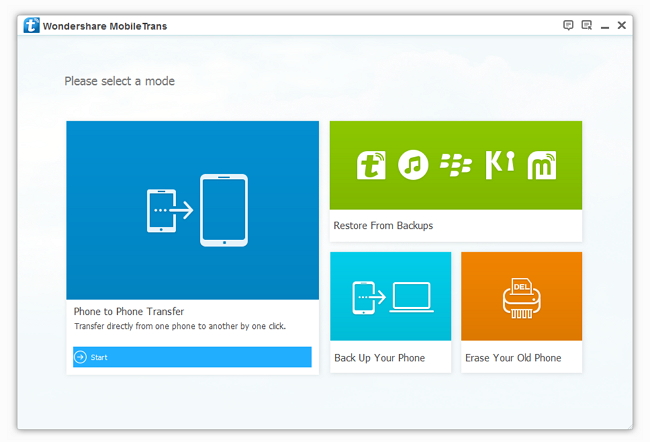
First of all, install and launch the phone to phone transfer tool on your Windows PC, and you will see the primary interface as the picture below.


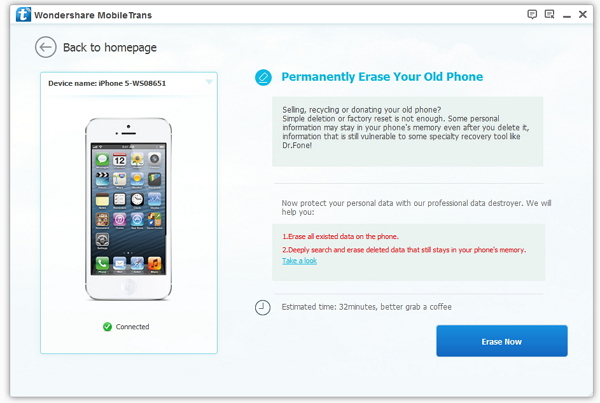
Then connect your Samsung touch/Android Device to this Windows PC via an Apple USB cable. After that, click on "Erase Your Old Android Device" button at the lower-right to brings up the data erasing window.


Step2 :Start to Erase Everything from Your Samsung Device

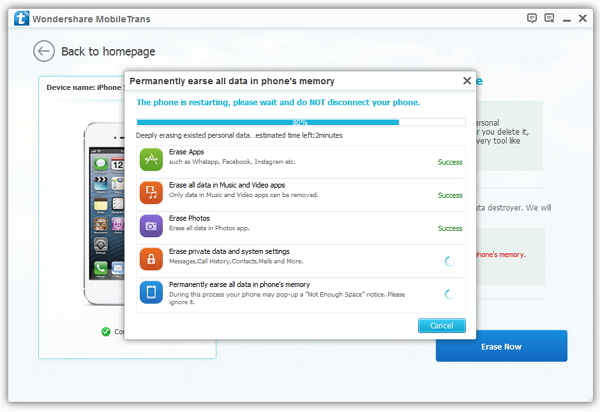
Go to the lower-right corner and click Erase Now. A dialog comes out. Read the tips and enter "delete" in the box. Then, click Start to erase to erase all of your data from your old Android Device.


----------------------------------------------------------------------------------------------------------------------------------------------------------------


More related articles

Transfer Whatsapp chat history from iPhone to Samsung galaxy S5